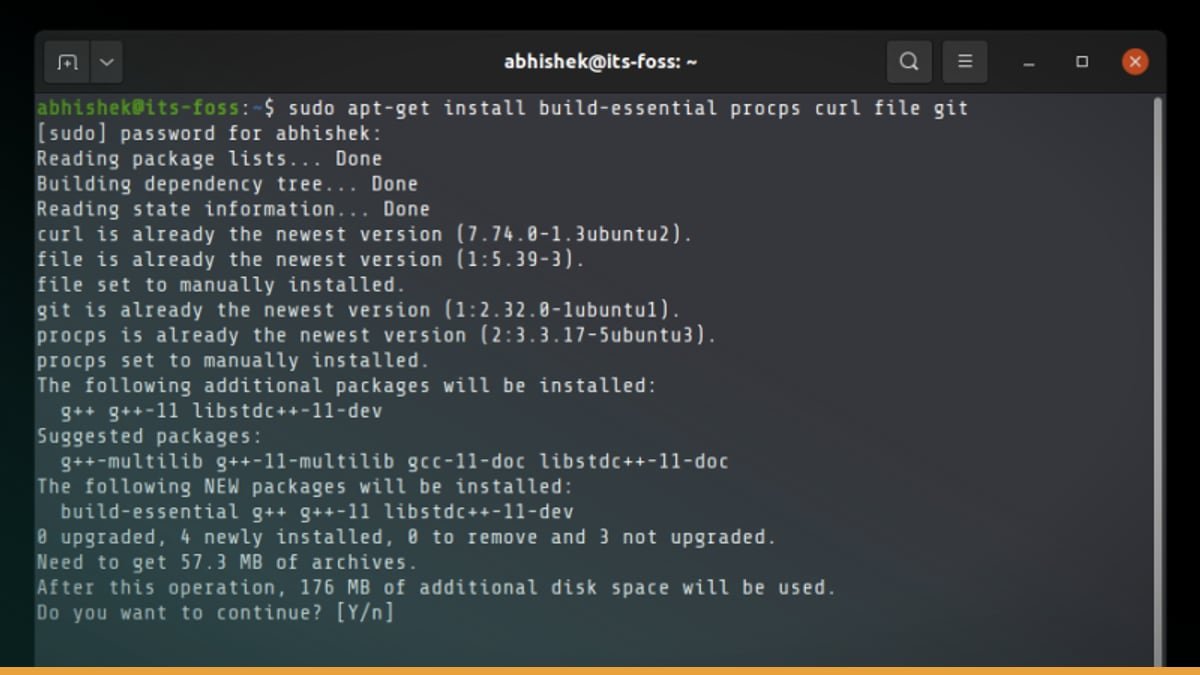
Header image source: How to Install Homebrew on Ubuntu and Other Linux via It’s FOSS via Google — cropped to 16:9 and colour-adjusted.
Key takeaways
- Homebrew installs user-specific tools without sudo or system conflicts
- Avoids dependency hell by keeping packages isolated in home directory
- Complements apt/dnf/pacman for newer dev tools and cross-platform consistency
/home/linuxbrew/.linuxbrew appeared on my system one Tuesday afternoon. No sudo, no system-wide library conflicts, just brew install pulling in the exact version needed without touching system directories. That’s when I realised Homebrew on Linux isn’t just a Mac port—it’s a fundamentally different way to manage software.
No more waiting for distro repos to update tools. No more dependency hell when distro repos lag behind. No more system package managers pulling in excessive dependencies. Homebrew installs everything in your home directory, coexisting with system package managers without breaking anything. If you’ve ever cursed at a system package manager, this starts to look less like an alternative and more like a necessity.
How Homebrew Actually Works on Linux
That one-liner:
“bash /bin/bash -c "$(curl -fsSL https://raw.githubusercontent.com/Homebrew/install/HEAD/install.sh)" “
Installs everything into a dedicated directory. Not /usr/local, not /opt. Just a clean directory tree in your home folder. From there, brew install fetches packages and places them in Homebrew’s directory structure.linuxbrew/Cellar/neovim/`. Homebrew uses system libraries when available, otherwise installs its own versions.
This isn’t how apt or dnf work. Those install software system-wide, requiring root privileges and often pulling in dependencies that conflict with other packages. Homebrew sidesteps this by bundling its own libraries. The trade-off? Disk space. /home/linuxbrew/ can grow large over time. But for most users, that’s a small price to pay for avoiding dependency conflicts.
From Linuxbrew to First-Class Citizen
Homebrew’s Linux support didn’t start this polished. Originally called Linuxbrew, it felt like an afterthought. The experience was less polished.
That’s changed. Today, Homebrew on Linux is no longer a novelty or a compromise. It now has comprehensive support. Homebrew integrated Linux support into the main project. Homebrew may be used on Linux and Windows Subsystem for Linux (WSL) 2.
This is no longer a novelty. It’s a mature, well-supported option that’s as viable on Linux as it is on macOS.
Coexistence, Not Replacement
Homebrew doesn’t replace apt, dnf, or pacman. It complements them. Here’s how:
- System packages (e.g.,
nginx,python3,docker) → Use your distro’s package manager. - User-specific tools (e.g.,
neovim,ripgrep,fd) → Use Homebrew.
This distinction matters because it avoids dependency hell. For example, if your distro’s repos only have ripgrep 12.0 but you need 13.0 for a project, installing it via Homebrew won’t break other tools that depend on the older version. Homebrew’s self-contained model means it installs everything separately, so it doesn’t interfere with system-managed packages.
This is particularly useful for developers. You can use system package managers for system dependencies, then use Homebrew for newer versions of development tools. It’s a clean separation that keeps your system stable while giving you flexibility for user-level software.
The Privilege-Free Advantage
No sudo. That’s one of Homebrew’s biggest strengths on Linux. Here’s why it matters:
Enhanced security from avoiding system-wide changes. Users can install and update software independently. Useful in restricted environments where elevated privileges are unavailable. Ideal for WSL or containers where elevated privileges may be limited.
This is a game-changer for developers in restricted environments. If you’re on a restricted machine, Homebrew lets you install tools without needing admin privileges. It’s also useful for WSL, where system-wide installs may be discouraged.
The Mac-to-Linux Transition
For Mac users switching to Linux, Homebrew offers a familiar workflow. The commands are identical:
“bash brew install neovim brew update brew upgrade “
No relearning package management. No adjusting to apt or dnf. Consistency across platforms. This consistency reduces friction when switching platforms, especially for developers working on cross-platform projects.
It also lowers the barrier to entry for users intimidated by system package managers. Homebrew’s simple interface (brew install, brew update) is easier to grasp than the nuances of different distro-specific package managers. A Mac user can install tools with familiar commands without learning system package managers.
Is Homebrew Redundant on Linux?
A common pushback is that Linux already has package managers. Here’s why Homebrew isn’t redundant:
- Not a replacement: It fills gaps where system package managers fall short. If distro repos are outdated, Homebrew can provide newer versions.
Avoids system pollution by keeping software isolated. Better for development tools that may lag in system repos.
But Homebrew isn’t a silver bullet. There are cases where you shouldn’t use it:
- System-critical software: Tools like
opensshorsystemdshould be managed by your distro’s package manager.
On minimalist systems, Homebrew’s disk usage might be prohibitive. You rely on distro-specific patches.g., Debian’s apt repos), Homebrew might not be the best fit.
Performance and Maintenance
Homebrew’s performance and maintenance model differs from traditional package managers in key ways:
- Installation speed: Generally fast because it downloads pre-built bottles rather than compiling from source. This contrasts with source-based package managers.
Update efficiency differs from system package managers. Disk usage can grow large over time. Unlike system packages, which are globally managed, Homebrew’s disk usage is entirely your responsibility.
- Maintenance:
Maintenance features help manage old versions. You need to maintain Homebrew separately from system package managers.
Who Should (and Shouldn’t) Use Homebrew
| Use Homebrew If… | Avoid Homebrew If… | |———————-|————————| You want installs without elevated privileges. You manage system-critical software. | You work across different platforms. You’re on a minimalist system. | You need newer versions than system repos provide. You prefer system-wide consistency.g., enterprise Linux). | You work in WSL or containers. You distrust third-party package managers. | You prefer simple, consistent commands. | You rely on distro-specific patches (e.g., Debian’s apt). |
The Open Question
Homebrew isn’t going to replace apt or dnf. But its privilege-free, user-level model is compelling for users who value flexibility and simplicity. The question isn’t whether Homebrew will replace traditional package managers—it’s whether it will become a standard part of the Linux toolkit alongside them.
For now, it’s a niche tool with a growing audience. But as more users switch from macOS to Linux and more developers work in cross-platform environments, Homebrew’s role on Linux is only going to expand. Will distros start bundling it by default? Or will it remain a tool for power users who’ve had enough of system package managers?
Leave a Reply