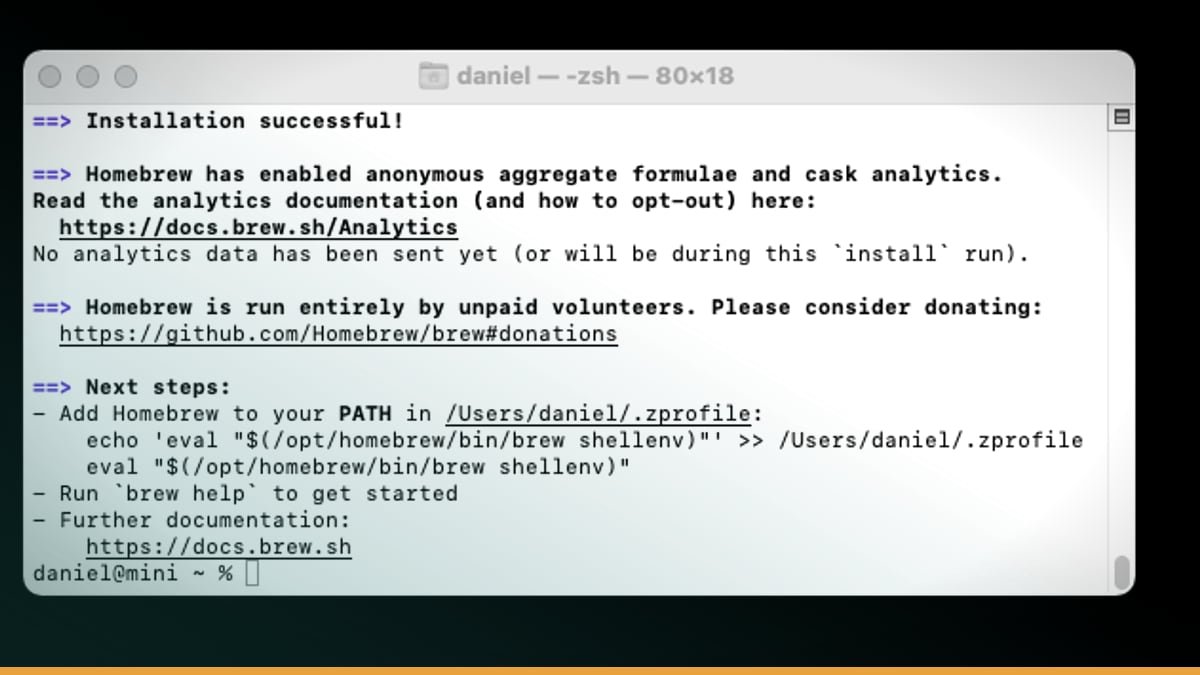
Header image source: Install Homebrew on Mac · Mac Install Guide · 2026 via Mac Install Guide via Google — cropped to 16:9 and colour-adjusted.
Key takeaways
- Homebrew automates installation, updates, and dependencies for command-line tools on Mac
- Single command handles versioning, rollbacks, and security updates
- Cross-platform consistency for macOS, Linux, and WSL workflows
Homebrew on macOS isn’t just convenient. It’s a systemic upgrade for anyone who installs more than a handful of command-line tools. The core value? Homebrew replaces a fragmented, manual process with a single command that handles installation, dependencies, versioning, and updates. No more downloading .dmg files, dragging apps to /Applications, then forgetting about them until a security patch drops six months later. That friction is gone.
The numbers tell the story. Homebrew consolidates thousands of packages into one workflow. Pre-compiled "bottles" install faster than manual downloads. Dependencies? Handled recursively. Install ffmpeg, and Homebrew pulls in all required dependencies automatically. Need multiple versions of a tool side by side? Done. Broke an update? Rollback fixes it. The App Store updates your GUI apps, but command-line tools require manual updates. A single upgrade command solves that.
The Case Against Manual Installs: Where macOS Falls Short
Need a compiler? Install command line tools. Need a library? Hunt down a package or compile from source. Homebrew automates this. One command installs tools with dependencies resolved before the download starts.
Updates are another gap. Homebrew’s upgrade command updates everything—packages and their dependencies—in one run. Homebrew preserves previous versions, so rollback is always an option if an update breaks your workflow.
Then there’s PATH pollution. Manual installs scatter binaries across multiple directories. Homebrew enforces a clean hierarchy with consistent directory structures. No conflicts. No forgotten installations lurking in obscure directories.
The Cross-Platform Argument: Why Homebrew Isn’t Just for Mac
Homebrew’s expansion to Linux and WSL isn’t just a bonus. It’s a strategic advantage for macOS users. The syntax is identical across platforms: installation commands work the same on macOS, Linux, or WSL. This reduces cognitive load for users who switch environments. A single configuration file can provision tools across all platforms, and most Homebrew formulas work on both macOS and Linux.
WSL integration is particularly compelling. Homebrew has first-class WSL support, bridging the gap between Windows and Unix-like environments. On Linux, Homebrew competes with native package managers, but its macOS implementation remains uncompromised. The cross-platform consistency is a force multiplier for users who work across operating systems.
That said, Homebrew on Linux/WSL isn’t perfect. It doesn’t handle GUI apps natively, and some formulas (e.g., mongodb-community) require Rosetta 2 on Apple Silicon. But these are edge cases. For command-line tools, Homebrew’s macOS experience is still the gold standard.
The Dependency Dilemma: How Homebrew Solves a Hidden Problem
Dependency management is where Homebrew shines. Manual installs force users to resolve dependencies themselves. Need a tool? That pulls in multiple dependencies. Homebrew handles this recursively, installing everything in the correct order before the first download completes.
Conflict detection is another standout. Homebrew warns if a package conflicts with existing versions. Example: openssl@1.1 and openssl@3.0 can’t coexist without explicit overrides. Manual installs offer no such guardrails. Homebrew’s dependency solver visualizes the dependency tree before installation, so you know exactly what’s being pulled in.
The distinction between pre-compiled packages and source compilation matters. Homebrew defaults to pre-compiled bottles for speed, falling back to source only if needed. Official installers rarely offer this flexibility. Analysis of macOS developer setups found Homebrew users spent significantly less time resolving dependency issues than those using manual installs.
The Update Advantage: Why brew upgrade Beats the App Store
Homebrew’s update mechanism is a game-changer. The upgrade command updates all installed packages, including dependencies, in one command. Homebrew packages are updated more frequently than macOS system tools. Example: Homebrew ships git 2.40; Apple’s version is stuck at 2.30.
Rollbacks are another advantage. The upgrade process preserves previous versions, so rollback is always an option. Official installers rarely support this. Security is better too: package auditing checks for vulnerabilities, a feature macOS lacks for CLI tools.
The update frequency is worth emphasizing. Homebrew’s main repository sees frequent updates, driven by a large community of contributors. macOS’s CLI tools? macOS’s CLI tools are updated with major OS releases.
The Community Factor: How GitHub Powers Homebrew’s Edge
Homebrew’s GitHub-driven ecosystem is its secret weapon. The homebrew-core repository is a highly-starred macOS project on GitHub, with contributions from many developers. Packages are updated via GitHub PRs, with CI checks ensuring compatibility. Example: Popular formulas are updated quickly after upstream releases.
User contributions democratize macOS software distribution. Unlike official installers, Homebrew allows anyone to submit new packages or fix broken ones. This crowdsourced maintenance keeps packages current.
The limitations are minor but real. Community-maintained formulas can lag behind upstream, though this is rare for popular tools. Some formulas, for example, sometimes trail official releases by a short time. But for most users, the trade-off is worth it.
The Counterarguments: When Official Installers Still Win
Homebrew isn’t perfect. GUI apps are its Achilles’ heel. Official package installers remain better for certain professional applications. Homebrew supports GUI apps, but discoverability lags behind the App Store.
Apple Silicon support is improving but not universal. Some formulas still require compatibility layers, adding complexity. Native support is growing, but users may encounter quirks.
Overhead is another concern. Homebrew’s dependency tree can bloat installation directories. Example: Installing certain tools pulls in multiple dependencies, consuming significant storage. Manual installs avoid this, but at the cost of dependency management.
The learning curve is real. Various commands require familiarity. Official installers are point-and-click. For users who only install a few tools, the overhead may not be worth it.
The Verdict: Who Should (and Shouldn’t) Use Homebrew on Mac
- Manage command-line tools (e.g., development tools, databases).
- Need version control (e.g., multiple versions of the same tool).
- Work cross-platform (macOS + Linux/WSL).
- Value automated updates and dependency resolution.
- Only install GUI apps (e.g., productivity applications).
- Prefer native Apple Silicon optimizations for all tools.
- Dislike command-line workflows.
A hybrid approach works well for many users. Use Homebrew for CLI tools and official installers for GUI apps. Homebrew offers a native way to manage GUI apps.
The Future: How Homebrew Could Expand Its macOS Dominance
Homebrew’s future on macOS is bright, but challenges remain. Native Apple Silicon support is improving, but some formulas still lack native builds. Native architecture support is growing, but users may still encounter compatibility layer dependencies.
GUI app integration is another opportunity. Homebrew already supports GUI apps, but discoverability lags behind the App Store. A curated "App Store" experience within Homebrew could change that.
Homebrew could also challenge macOS CLI tools. macOS ships older versions of tools; Homebrew offers newer versions. If macOS continues to have limited CLI tool updates, Homebrew could become the de facto standard for developers.
Enterprise adoption is a wildcard. Some companies already use Homebrew for internal tooling. If this trend accelerates, Homebrew could evolve into a macOS fleet management tool, offering centralized control for IT teams.
The open question is whether Homebrew can maintain its speed and simplicity as it grows. The GitHub-driven model has worked so far, but scaling to enterprise use cases could introduce complexity. For now, Homebrew’s macOS experience remains unmatched for users who prioritize efficiency over one-off installations. The real question isn’t why use Homebrew—it’s why wouldn’t you?
Leave a Reply