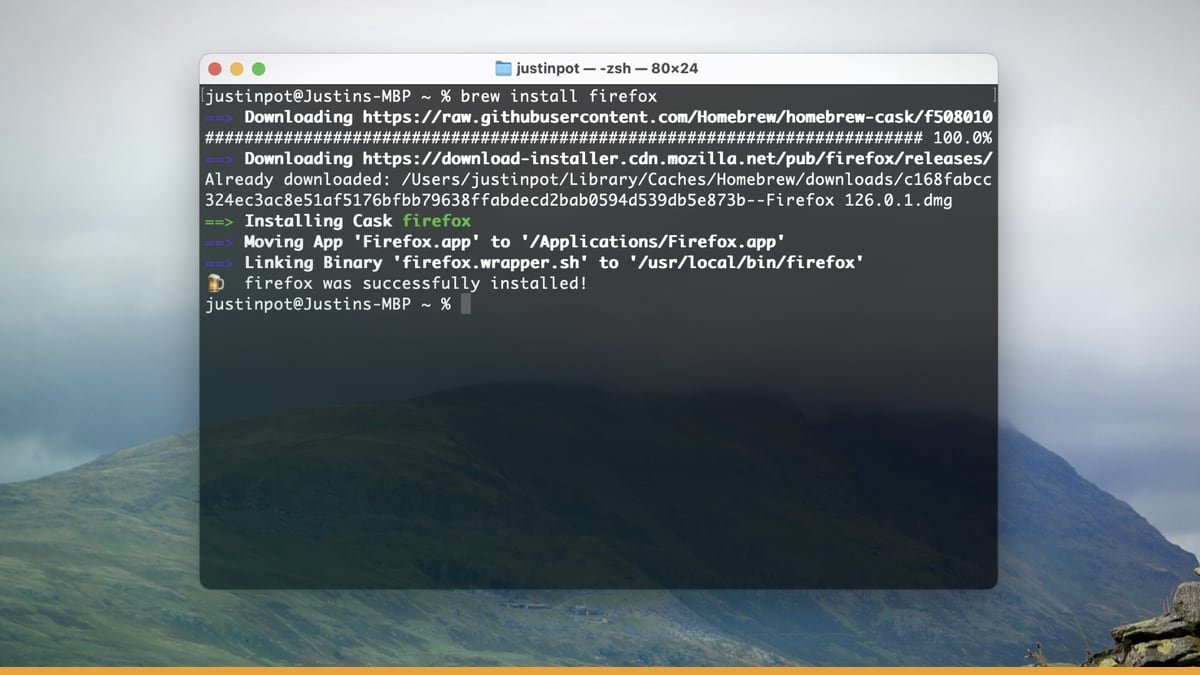
Header image source: Use ‘Homebrew’ on Mac to Make Installing and Updating Apps Much Easier | Lifehacker via Lifehacker via Google — cropped to 16:9 and colour-adjusted.
Key takeaways
- Homebrew simplifies software installs to one command across macOS, Linux, and WSL
- Handles dependencies automatically and avoids system conflicts with keg-only formulae
- Automates updates and cleanup while scaling for teams via Workbrew and Brewfiles
brew install just became the default way to manage open-source tools on macOS, Linux, and WSL. Again. This week, Homebrew’s GitHub repository crossed thousands of formulae in homebrew-core, and the homebrew/cask tap now hosts thousands of GUI applications. Numbers don’t lie—Homebrew isn’t just popular. It’s the default.
Why? Because installing software on these platforms is still a mess. Apple’s App Store doesn’t focus on command-line tools. Linux package managers vary across distributions. Windows users in WSL can benefit from a consistent workflow. Homebrew fixes this with one command. It minimizes manual downloads. It reduces dependency issues. It eliminates the need to hunt for .dmg files or .deb packages. It installs, updates, and removes software in a single, unified flow—while keeping everything neatly sandboxed away from system files.
If you’re a developer, sysadmin, or power user, Homebrew isn’t just convenient. It’s the most efficient way to manage open-source tools across platforms. Full stop.
The One-Command Promise: Why brew install Beats Everything Else
The core of Homebrew is brew install [package]. That’s it. It typically avoids compiling from source. It eliminates digging through forums for download links. It handles missing libraries automatically. Want ffmpeg? brew install ffmpeg. Need node? brew install node. GUI apps can be installed via cask. Homebrew handles downloads, dependency resolution, and configuration.
This isn’t just convenience. It’s eliminating friction. Without Homebrew, installing postgresql on macOS involves multiple manual steps.
With Homebrew: “bash brew install postgresql “ Typically one command. Homebrew fetches and installs software. No GUI required. Minimal manual steps. Reduces guesswork.
Cross-Platform Consistency: One Workflow Everywhere
Homebrew works on:
- macOS: Installs to
/usr/local, avoiding conflicts with Apple’s System Integrity Protection (SIP). - Linux: Installs to
~/.linuxbrew, requiring nosudoand keeping everything user-level. - WSL: Provides a familiar workflow for Windows users who need Linux tools.
This matters. A Linux user moving to macOS can use familiar commands. A Windows user in WSL can use consistent commands. Consistency isn’t a nice-to-have—it’s a productivity multiplier.
Dependency Management Without the Nightmares
Dependency hell isn’t theoretical. It’s real. Ever tried installing a tool manually, only to hit dependency issues? Homebrew handles dependency resolution.
Installing postgresql pulls in necessary dependencies.
This happens automatically. Minimizes manual downloads. Reduces version conflicts. Minimizes broken installs.
Keg-Only Formulae: Avoiding System Conflicts
Some packages are installed but not linked by default. These are keg-only formulae to avoid conflicts. macOS ships with an older Python, but you might need newer versions. Homebrew installs it to /usr/local/Cellar/python@3.9 but doesn’t symlink it to /usr/local/bin unless you explicitly run: “bash brew link --force python@3.9 “ This keeps system versions intact while providing alternatives.
Bottles: Pre-Compiled Binaries for Speed
Compiling software from source takes time. Homebrew accelerates installs with pre-compiled binaries. For example, using a flag to prefer pre-compiled binaries. This skips compilation, significantly speeding up installation. Bottles are built for common versions.
GitHub-Powered: Why Homebrew’s Ecosystem Outpaces the Rest
Homebrew’s package ecosystem is hosted on GitHub. This isn’t a minor detail. It helps Homebrew scale effectively.
Formulae: The Building Blocks of Homebrew
Every package in Homebrew is defined by a formula. The homebrew-core repository hosts thousands of formulae covering many tools.
Here’s a snippet from the ffmpeg formula: “ruby class Ffmpeg < Formula url "https://ffmpeg.org/releases/ffmpeg-5.1.2.tar.xz" sha256 "51322be3ba600e512df708643358b1a2f660485bbc3ab6c64578064a0c8656b5" license "GPL-2.0-or-later" depends_on "nasm" =>:build depends_on "x264" depends_on "x265" #... more dependencies end “ This script ensures Homebrew knows:
- Where to download
ffmpeg. - What dependencies (
nasm,x264,x265) are required. - How to verify the download’s integrity with a SHA-256 hash.
Community Contributions: The Engine of Growth
Homebrew enables contributions through GitHub. If a tool isn’t in Homebrew, you can:
- Fork the
homebrew-corerepository. - Write a formula for the tool.
- Submit a pull request.
This has led to expansion of Homebrew’s package catalog. Tools like modern alternatives to basic commands were added by community members. The result? Homebrew stays ahead of the curve.
Taps: Extending Homebrew Beyond Core
Homebrew’s core repository is just the start. Taps add more packages. Some notable taps include those for GUI applications, services, and bundle management.
For example, to install GUI applications via cask. Taps make Homebrew highly extensible. Users can maintain their own package repositories.
Updates and Maintenance: The Silent Productivity Boost
Software rot is real. Tools fall out of date. Security vulnerabilities emerge. Manual updates become a chore. Homebrew automates this with a handful of commands:
brew update: Fetches the latest formulae from GitHub.brew upgrade: Updates all installed packages to their latest versions.brew outdated: Lists packages with available updates.brew cleanup: Removes old versions and cached downloads.
For example, running brew outdated shows which packages have updates available. The brew upgrade command updates packages. No need to visit websites. No manual downloads required. Minimizes broken dependencies.
Cleaning Up After Yourself
Homebrew caches downloads and keeps old versions, which can consume significant disk space over time. The brew cleanup command reclaims space. This removes old versions, cached downloads, and unnecessary files.
For example, after upgrading packages, brew cleanup frees up space by removing old versions. Over time, this adds up—especially on laptops with limited storage.
Scaling Homebrew for Teams and Organizations
Homebrew isn’t just for individual developers. It scales to teams, organizations, and enterprises with additional tools.
Workbrew: Homebrew for Teams
Commercial extensions exist for team-wide package management. It provides centralized control, audit capabilities, and compliance features.
For example, a company can define required tools and distribute them for consistent installation.
This ensures consistency across development environments.
Private Taps: Internal Package Management
Companies can host private taps for proprietary tools. For example, a company might maintain a private tap with internal tools and custom software.
Employees add the tap and install tools from it. This keeps internal tools manageable across the organization.
Bulk Management with Brewfile
The brew bundle command installs multiple packages from a configuration file. For example, a Brewfile can list packages to install. Running brew bundle installs listed packages. This is useful for setting up machines, onboarding, and ensuring consistency.
macOS-Specific Superpowers: Filling Apple’s Gaps
macOS ships with older versions of tools. Homebrew provides newer versions of tools and additional software.
Tools Apple Forgot
macOS ships with older versions of common tools like bash, python, and git.
Homebrew installs modern versions of tools. This ensures you have current software.
Avoiding System Integrity Protection (SIP)
Apple’s SIP restricts system file modifications. Homebrew avoids SIP restrictions by installing to user-writable locations. This means easier installation, fewer conflicts, and safer upgrades.
Reinstalling After a macOS Reset
Resetting a Mac or setting up a new one can be simplified with Homebrew. With brew bundle, you can save your setup and restore it after a reset. This reinstalls your tools in one go. No manual downloads needed. Fewer forgotten apps.
Linux and WSL: Homebrew as the Cross-Platform Equalizer
Homebrew isn’t just for macOS. On Linux and WSL, it provides a consistent package manager.
Linux: No sudo, No Conflicts
On Linux, Homebrew installs to user directories, avoiding system conflicts. This is ideal for:
- Developers who switch between macOS and Linux: Same
brewcommands on both. - Users who don’t have
sudoaccess: Install tools without admin privileges. - Avoiding distribution-specific quirks:
aptvs.yumvs.dnfbecomes irrelevant.
For example, installing tools on Linux with Homebrew. No need for distribution-specific commands. No need for external repositories. Just one command typically.
WSL: A Familiar Workflow for Windows Users
Windows users running WSL may find Linux package managers unfamiliar. Homebrew provides a familiar workflow with consistent commands across platforms.
For example, a Windows user in WSL can use Homebrew commands.
The Trade-offs: When Homebrew Isn’t the Answer
Homebrew isn’t perfect. There are scenarios where it’s not the right tool.
Not for System-Wide Services
Homebrew installs to user directories, making it unsuitable for system-wide services and low-level tools.
For these, use system package managers or containers.
Disk Space: Bottles Add Up
Homebrew’s cached downloads can consume significant disk space. For example, package bottles can be large.
This adds up over time, especially on laptops with limited storage. Regular cleanup helps manage space, but there’s a convenience trade-off.
Learning Curve: Advanced Use Requires CLI Skills
Homebrew is easy for basic use but requires CLI knowledge for advanced scenarios.
Users who prefer GUIs might find other tools more approachable.
Alternatives: When to Look Elsewhere
Homebrew isn’t the only option. Alternatives include MacPorts, Nix, and OS-native package managers with different characteristics.
Is Homebrew Worth It?
Homebrew’s value comes down to one question: How much time do you spend managing software? If the answer is "too much," Homebrew is worth it. It reduces manual work while providing a cross-platform package ecosystem.
For individual developers, Homebrew is a no-brainer. It’s open-source and reduces frustration. For teams and organizations, additional tools make it scalable.
The only real downside? Disk space. But with cleanup, disk space can be managed.
So, why use Homebrew? Because software management shouldn’t be a chore. Homebrew simplifies it to basic commands. And in a world where time is the scarcest resource, that’s not just convenient. It’s essential.
The real question isn’t whether you can afford to use Homebrew. It’s whether you can afford not to.